📸 The Magazine For Photographers - Bite Size
Read the Latest Photography News and Updates in the Creative Industry in 3-4 minutes or less ;)
In partnership with


Important note: All photography articles are NOT sponsored
The Latest News:

credits: Fujifilm
At the CP+ 2026 show in Yokohama, Fujifilm shared a few insights into where its camera division is heading, including confirmation that the X-Pro series is not going away. In an interview with the French photography publication Phototrend, several Fujifilm representatives, including Jun Watanabe from X-Series product planning, Makoto Oishi from GFX planning, and marketing manager Shugo Kiryu, talked about the company’s current momentum and some of the ideas shaping future products. Financially, the imaging division appears to be doing well, during the first nine months of 2025, revenue grew by about 14 percent, while operating profit rose by nearly 18 percent.
Watanabe confirmed that the X-Pro lineup will continue, although he did not give any timeline for the next model. The last camera in the series, the X-Pro3, was released back in 2019, so a successor has been widely anticipated for some time. He also did not go into detail about how a future X-Pro camera might differ from something like the X-E5. Elsewhere in the lineup, Fujifilm’s compact X half camera is reportedly selling well in Asia, though its reception in Europe has been more modest. Watanabe also suggested that the 1-inch sensor used in that camera might show up in other products in the future, although positioning a camera with that sensor size somewhere between APS-C models and smartphones could be a challenge.
Fujifilm also hinted at a few possible lens and software developments. Alongside compact lenses like the 27mm f/2.8 and the newer 23mm f/2.8, the company is considering additional pancake lenses, possibly including a wider focal length better suited to small camera bodies. On the medium-format side, the GFX 100RF has apparently brought quite a few new users into the GFX system. Fujifilm also suggested that film simulations might eventually expand beyond JPEG files, which has not been possible so far. At the same time, the company says it is taking a cautious approach to AI, emphasising that photography itself should remain the focus while improvements in autofocus, image quality, video performance, and image authentication continue to develop.
ULH’s New Lens Hoods

credits: ULH
The creators of the Ultimate Lens Hood have launched a new campaign featuring three updated products meant to help photographers and videographers shoot through glass without reflections or glare. The lineup includes versions designed for traditional cameras, smartphones, and action cameras.
The main product in the new campaign is the ULHpro, which the company describe as the smallest version of the Ultimate Lens Hood so far. One of the biggest changes is the addition of integrated suction cups, allowing it to attach directly to glass for hands-free shooting. Earlier versions had to be held against the window while taking photos. The ULHpro can still be used that way, but the suction mount means you can now keep both hands free to adjust settings or compose your shot. Like earlier versions, the hood is made from flexible silicone that stretches around a wide range of lenses. Compatibility depends on the diameter of the lens barrel rather than focal length, and it is designed to fit lenses roughly 55mm in diameter up to well over 100mm, which typically covers lenses with 52mm filters or larger.
The campaign also introduces two additional versions. The ULHmobile is designed for smartphones and features a 40mm opening intended to fit modern phone camera modules, attaching with a flexible clip that stretches over most phone cases. The ULHaction adapts the same concept for action cameras, fitting models such as the GoPro Hero 7 and newer cameras as well as DJI Osmo Action. According to the campaign page, manufacturing tooling has already been completed, and a ‘‘Full House” bundle that includes all three versions is listed at $55.
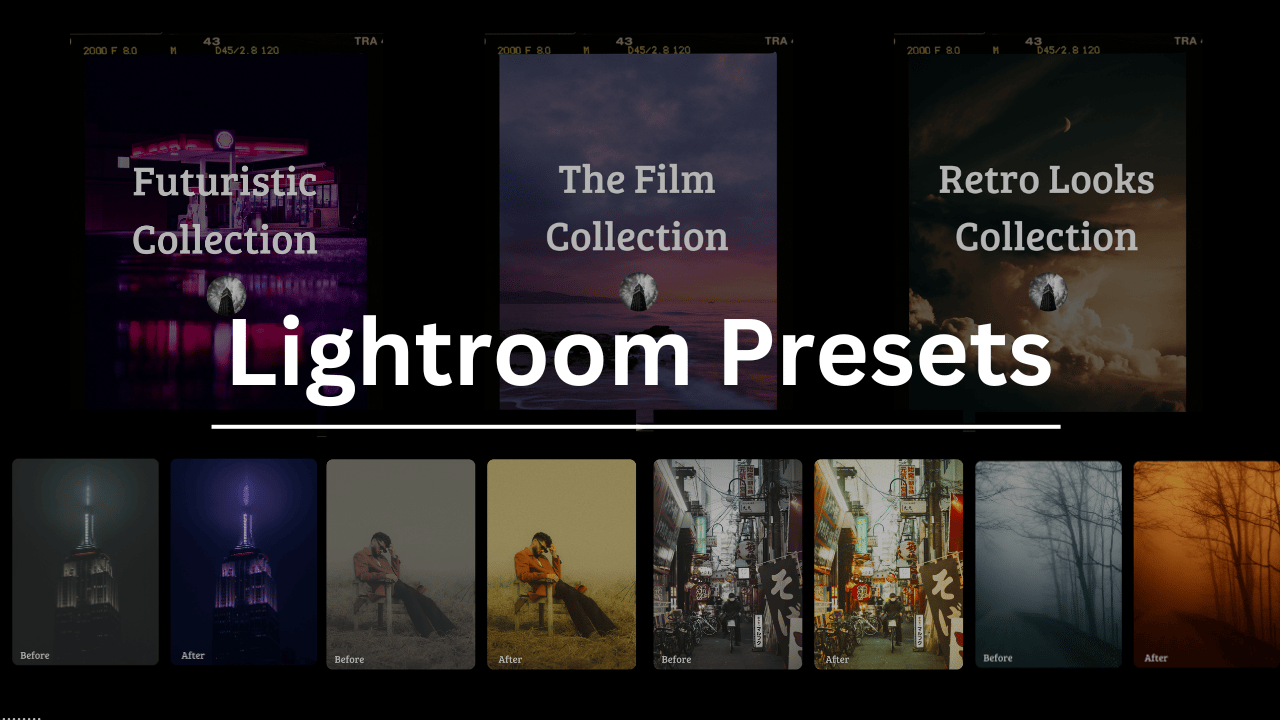
Download The World’s Best Lightroom Presets
Something You Have To Check Out
Get Your News Without the Spin or the Bias

Most news outlets tell you what to think. The Flyover just tells you what happened.
Quick, fact-focused coverage across politics, business, sports, tech, science, and more — delivered free to your inbox every morning.
No paywall. No political agenda. No endless scrolling.
Join over 2.3 million readers who start their day informed, confident, and ahead of the curve.
Weekly Photo Technique Exploration
Welcome to a new section of the magazine where every week we will explore a new photography technique from across various photography genres.
This week’s technique: Selective Colour Photography

Skylum

Peter Jochen

Skylum

Joseph Vm
What is Selective Colour Photography?
Selective colour photography is exactly what it sounds like. You take a photo and convert most of it to black and white while leaving one colour, or a small range of colours, untouched. The result immediately draws the viewer’s attention to that colour and, naturally, to the subject connected to it.
Photographers use this technique in several different genres. In portraits, it is often used to keep bright red lipstick or blue eyes in colour while everything else monochrome. Street photographers sometimes highlight a bold element such as a colourful umbrella or a passing car etc.
How to Set Up Your Shot for Selective Colour
Technically, you can apply this effect to almost any photo during editing. However, some photos work much better than others. Setting up your shot with the final effect in mind will give you a far stronger result.
First, pick a strong and clearly defined colour. Selective colour works best when the colour you want to highlight is separated from the rest of the scene. Bold reds, blues, and yellows usually work particularly well. If the same colour appears all over the image, the effect becomes weaker because the viewer’s eye has nowhere specific to settle.
Second, keep the scene simple. If the background is cluttered, selective colour can quickly look messy or distracting. The strongest images tend to be clean, carefully composed, and built around a subject that is easy to isolate.
How to Create the Selective Colour Effect in Editing
Most cameras do not include a built-in selective colour mode, which means the effect is usually created during post-processing. Photoshop and Lightroom allow you to convert a photo to black and white while preserving specific colours through masking or colour selection tools. Now, before I go over how to do it, it is worth mentioning there are several different ways to go about it, each has their own difficulty and precision level. Let’s take a closer look ;)
Method 1: Desaturate Everything Except One Colour
This is the fastest way to create the effect and works well if the scene already has clearly separated colours.
Open the photo in Lightroom or another editing program.
Go to the HSL panel.
Reduce the saturation of all colours except the one you want to keep.
Adjust the remaining colour slightly if needed so it doesn’t look overly intense.
Method 2: Black & White Conversion + Masking
This method gives you more precision because you manually choose exactly where the colour appears.
Convert the photo to black and white.
Create a mask or brush layer.
Paint the colour back into the specific subject.
Refine the edges so the colour transition looks natural.
Programs like Photoshop allow you to use layer masks, while Lightroom allows local adjustment brushes. A couple things to watch out for: Take your time around edges, Zoom in to avoid colour ‘bleeding’ into nearby areas.
Method 3: Using Colour Range Selection
This technique automatically selects colours based on their tone range.
How to do this in Photoshop:
Go to Select → Colour Range.
Click on the colour you want to isolate
Adjust the fuzziness slider to control how wide the selection is.
Once selected, invert the selection and convert everything else to black and white.
Method 4: Luminosity Masking
Probably the most advanced option. Luminosity masks allow you to select areas of an image based on brightness values, which helps you control colour transitions much more naturally.
Create a black and white adjustment layer.
Apply a luminosity mask to restrict where the adjustment applies.
Combine this with colour masking to isolate the subject.
This approach allows you to: 1. Keep colour in brighter areas while desaturating darker ones, 2. Blend colour transitions more naturally, 3. Avoid harsh edges or unnatural masking.
Final Tip
Selective colour can easily become distracting if the effect is too strong. In my experience, the best results usually come when the viewer notices the colour naturally rather than feeling like it was forced into the photo. If the composition works even without the colour effect, the final image will almost always be stronger.
*advertisement (please check it out to support the magazine, it only takes a second and truly helps a lot)
Studio Quality. No Studio Required

When you use Riverside, it's like carrying an entire podcast studio in your laptop bag. They let podcasters capture, edit, and publish in one place with no gear, no lag, and no stress.
The Rest of this Issue is for Premium Subscribers
